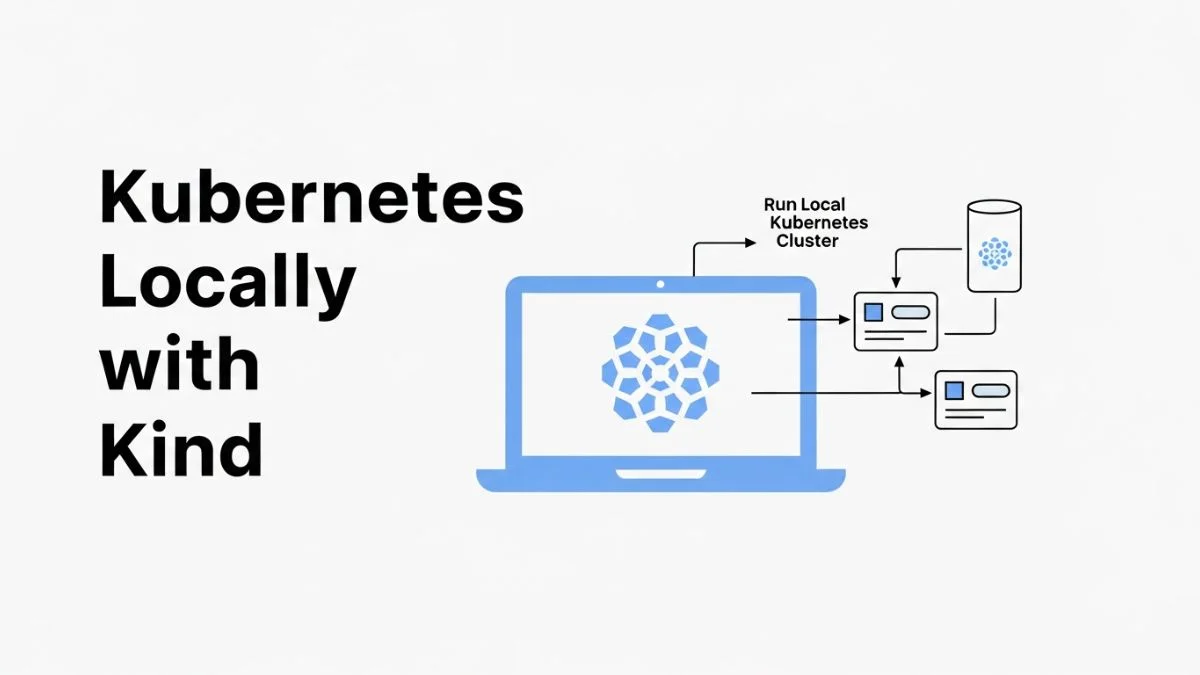
How to Set Up Kubernetes Locally with Kind

How to Set Up Kubernetes Locally with Kind
Running Kubernetes locally for development has traditionally meant choosing between Minikube's VM overhead, Docker Desktop's resource consumption, or complex manual cluster setup. Kind (Kubernetes in Docker) offers a different approach: it runs entire Kubernetes clusters as Docker containers, spinning up multi-node clusters in seconds with minimal resource footprint. A three-node Kind cluster consumes roughly 2GB RAM compared to Minikube's 4GB minimum, making it practical for developers working on resource-constrained machines or running multiple clusters simultaneously.
This guide demonstrates setting up production-like Kubernetes environments on your local machine using Kind. You'll learn cluster creation with custom configurations, ingress controller setup, persistent storage configuration, and multi-cluster management for testing complex deployment scenarios. These techniques enable testing Kubernetes manifests locally before applying them to production clusters, significantly reducing the feedback loop during development.
We'll cover installation, basic cluster operations, advanced configurations, ingress setup, local registry integration, and common troubleshooting scenarios.
Why Kind Over Other Local Kubernetes Options
Kind was created by the Kubernetes project specifically for testing Kubernetes itself, which makes it exceptionally good at running conformant clusters. Unlike some local development solutions that implement partial Kubernetes APIs, Kind runs actual Kubernetes control plane components in containers—the same code that runs in production clusters. This means manifests that work in Kind will work identically in GKE, EKS, or any other conformant cluster.
The performance characteristics differ significantly from alternatives. Minikube runs Kubernetes inside a VM (even when using the Docker driver), adding virtualization overhead. Docker Desktop Kubernetes runs a single-node cluster that cannot test multi-node scenarios like pod affinity, node selectors, or distributed workloads. K3s provides a lightweight alternative but modifies some Kubernetes components, occasionally causing compatibility issues with certain operators or controllers.
Kind clusters start in 20-40 seconds on modern hardware, compared to 2-3 minutes for Minikube. Creating and destroying clusters is fast enough to include in CI/CD pipelines—many projects use Kind for integration testing, spinning up clusters, running tests, and tearing down in automated workflows. This speed enables a workflow where you create fresh clusters for different testing scenarios rather than trying to maintain one long-lived development cluster.
Installation and Prerequisites
Kind requires only Docker and kubectl. The tool itself is a single binary with no additional dependencies. Installation varies by platform but remains straightforward across Linux, macOS, and Windows.
Installing Kind
# macOS with Homebrew
brew install kind

# Linux
curl -Lo ./kind https://kind.sigs.k8s.io/dl/v0.20.0/kind-linux-amd64
chmod +x ./kind
sudo mv ./kind /usr/local/bin/kind

# Windows with Chocolatey
choco install kind

# Or download binary directly from GitHub releases
# https://github.com/kubernetes-sigs/kind/releases
Verify kubectl is installed and functional:
kubectl version --client
If kubectl isn't installed, install it according to Kubernetes documentation. Kind doesn't include kubectl; it only manages clusters that kubectl then interacts with.
Docker Requirements
Kind requires Docker to be running with at least 4GB RAM allocated (8GB recommended for multi-node clusters). On Docker Desktop, check resource allocation in Settings → Resources. Linux users running native Docker don't need special configuration beyond ensuring the Docker daemon is running.
Creating Your First Cluster
The simplest cluster creation requires a single command:
kind create cluster
This creates a single-node cluster named "kind" with the default configuration. Kind automatically updates your kubeconfig file, setting the new cluster as the current context. Within 30-60 seconds, you have a working Kubernetes cluster:
# Verify cluster is running
kubectl cluster-info --context kind-kind

# Check nodes
kubectl get nodes

# Output:
# NAME                 STATUS   ROLES           AGE   VERSION
# kind-control-plane   Ready    control-plane   1m    v1.27.3
This cluster includes all standard Kubernetes components: API server, scheduler, controller manager, etcd, and a container runtime (containerd). It's fully functional for deploying applications, testing manifests, and learning Kubernetes.
Creating Named Clusters
Managing multiple clusters requires naming them explicitly. This is essential when testing different Kubernetes versions or maintaining separate clusters for different projects:
# Create cluster with specific name
kind create cluster --name dev

# Create another cluster
kind create cluster --name staging

# List all clusters
kind get clusters

# Switch between clusters
kubectl config use-context kind-dev
kubectl config use-context kind-staging
Multi-Node Cluster Configuration
Production Kubernetes clusters run across multiple nodes for high availability and workload distribution. Testing multi-node scenarios locally requires Kind cluster configuration files that specify node topology.
Three-Node Cluster Configuration
Create a file named kind-config.yaml:
kind: Cluster
apiVersion: kind.x-k8s.io/v1alpha4
nodes:
  - role: control-plane
  - role: worker
  - role: worker
Create the cluster using this configuration:
kind create cluster --name multi-node --config kind-config.yaml
Verify the multi-node setup:
kubectl get nodes # Output: # NAME STATUS ROLES AGE VERSION # multi-node-control-plane Ready control-plane 2m v1.27.3 # multi-node-worker Ready2m v1.27.3 # multi-node-worker2 Ready 2m v1.27.3
This configuration enables testing workload distribution, node affinity rules, pod anti-affinity, and node failure scenarios. Deploy a replicated application and observe how pods distribute across worker nodes:
kubectl create deployment nginx --image=nginx --replicas=3
kubectl get pods -o wide

# Pods will be scheduled across available worker nodes
High Availability Control Plane
For testing HA control plane scenarios, configure multiple control plane nodes:
kind: Cluster
apiVersion: kind.x-k8s.io/v1alpha4
nodes:
  - role: control-plane
  - role: control-plane
  - role: control-plane
  - role: worker
  - role: worker
This creates a cluster with three control plane nodes and two workers, simulating enterprise cluster topology. Each control plane node runs its own API server, scheduler, and controller manager, with etcd distributed across all three for data redundancy.
Ingress Controller Setup
Kubernetes Services expose applications within the cluster, but accessing them from your local machine requires ingress configuration. Kind clusters need two components: an ingress controller (like Nginx or Contour) and port mapping from the Kind container to your host machine.
Creating Cluster with Ingress Support
First, create a cluster with port mappings configured:
# kind-ingress-config.yaml
kind: Cluster
apiVersion: kind.x-k8s.io/v1alpha4
nodes:
  - role: control-plane
    kubeadmConfigPatches:
      - |
        kind: InitConfiguration
        nodeRegistration:
          kubeletExtraArgs:
            node-labels: "ingress-ready=true"
    extraPortMappings:
      - containerPort: 80
        hostPort: 80
        protocol: TCP
      - containerPort: 443
        hostPort: 443
        protocol: TCP
Create the cluster:
kind create cluster --name ingress-test --config kind-ingress-config.yaml
Installing Nginx Ingress Controller
Deploy the official Nginx ingress controller compatible with Kind:
kubectl apply -f https://raw.githubusercontent.com/kubernetes/ingress-nginx/main/deploy/static/provider/kind/deploy.yaml

# Wait for the controller to be ready
kubectl wait --namespace ingress-nginx \
  --for=condition=ready pod \
  --selector=app.kubernetes.io/component=controller \
  --timeout=90s
Testing Ingress Configuration
Deploy a test application with ingress:
# Create deployment kubectl create deployment web --image=nginx # Expose deployment kubectl expose deployment web --port=80 # Create ingress cat <Add the host to your /etc/hosts file:
# Add this line to /etc/hosts 127.0.0.1 web.localAccess the application at http://web.local in your browser. The request flows from your browser to localhost:80, through the Kind container's port mapping, to the ingress controller, which routes it to the nginx pod based on the host header.
Local Container Registry Integration
Pushing images to Docker Hub or other remote registries for local testing adds unnecessary friction. Kind supports running a local Docker registry that the cluster can pull images from, enabling instant image updates during development.
Creating Local Registry
# Create registry container docker run -d --restart=always -p 5000:5000 --name kind-registry registry:2 # Create cluster connected to registry cat <Configure the registry as insecure (required for HTTP registries):
# Document the local registry in cluster kubectl apply -f - <Using the Local Registry
Build and push images to the local registry:
# Build image docker build -t localhost:5000/myapp:latest . # Push to local registry docker push localhost:5000/myapp:latest # Deploy to cluster kubectl create deployment myapp --image=localhost:5000/myapp:latestThe cluster pulls from localhost:5000 instantly since it's running on the same Docker network. Changes to your application require only rebuilding and pushing the image—the new version is immediately available without internet uploads.
Pro Tip: Combine local registry with image pull policyimagePullPolicy: Alwaysin your deployments. This forces Kubernetes to check for new image versions on every pod creation, enabling instant updates during development.Persistent Storage Configuration
Kind clusters support persistent volumes through the standard StorageClass mechanism. By default, Kind provides a storage class that creates hostPath volumes—directories on the Kind container's filesystem that persist across pod restarts but not cluster deletions.
Using Default Storage
# Check available storage classes kubectl get storageclass # Output: # NAME PROVISIONER RECLAIMPOLICY # standard (default) rancher.io/local-path Delete # Create PVC cat <Deploying Stateful Applications
Example PostgreSQL deployment with persistent storage:
apiVersion: apps/v1 kind: StatefulSet metadata: name: postgres spec: serviceName: postgres replicas: 1 selector: matchLabels: app: postgres template: metadata: labels: app: postgres spec: containers: - name: postgres image: postgres:15 ports: - containerPort: 5432 env: - name: POSTGRES_PASSWORD value: password volumeMounts: - name: postgres-storage mountPath: /var/lib/postgresql/data volumeClaimTemplates: - metadata: name: postgres-storage spec: accessModes: ["ReadWriteOnce"] resources: requests: storage: 1GiData persists across pod restarts and redeployments. However, running
kind delete clusterdestroys the cluster container and all associated storage. For data that must survive cluster recreation, use volume mounts from the host filesystem.Mounting Host Directories
Configure clusters to mount specific host paths:
kind: Cluster apiVersion: kind.x-k8s.io/v1alpha4 nodes: - role: control-plane extraMounts: - hostPath: /path/on/host containerPath: /data readOnly: falseThe directory at /path/on/host on your machine becomes available at /data inside the Kind container. Create PersistentVolumes pointing to this path for truly persistent storage across cluster recreations.
Testing Kubernetes Versions
Kind supports creating clusters with specific Kubernetes versions, essential for testing manifest compatibility or validating upgrades before applying to production clusters.
Specifying Kubernetes Version
# Create cluster with Kubernetes 1.27 kind create cluster --name k8s-1-27 --image kindest/node:v1.27.3 # Create cluster with Kubernetes 1.26 kind create cluster --name k8s-1-26 --image kindest/node:v1.26.6 # List available node images at https://github.com/kubernetes-sigs/kind/releasesThis enables testing deprecated API versions before they're removed. For example, Kubernetes 1.25 removed several beta APIs that existed in 1.24. Creating clusters with both versions lets you verify manifests work across the upgrade boundary.
Advanced Configuration Options
Custom API Server Configuration
Modify API server flags for testing specific features:
kind: Cluster apiVersion: kind.x-k8s.io/v1alpha4 nodes: - role: control-plane kubeadmConfigPatches: - | kind: ClusterConfiguration apiServer: extraArgs: enable-admission-plugins: NodeRestriction,PodSecurityPolicy feature-gates: "EphemeralContainers=true"Custom DNS Configuration
Configure cluster DNS for specific domain resolution:
kind: Cluster apiVersion: kind.x-k8s.io/v1alpha4 nodes: - role: control-plane kubeadmConfigPatches: - | kind: ClusterConfiguration networking: dnsDomain: "custom.local"Resource Limits per Node
While Kind doesn't directly support resource limits per node (since they're containers), you can limit the Docker daemon's resources, which affects all containers including Kind clusters. This is more useful for ensuring Kind doesn't consume all system resources than for testing specific resource constraints.
Multi-Cluster Management
Testing complex scenarios like cluster federation, cross-cluster service mesh, or disaster recovery requires managing multiple clusters simultaneously.
Creating Multiple Clusters
# Create primary cluster kind create cluster --name primary # Create secondary cluster kind create cluster --name secondary # List clusters kind get clusters # Get kubeconfig for specific cluster kind get kubeconfig --name primary > primary-kubeconfig.yaml kind get kubeconfig --name secondary > secondary-kubeconfig.yamlSwitching Between Clusters
# View all contexts kubectl config get-contexts # Switch to primary cluster kubectl config use-context kind-primary # Execute command against specific cluster kubectl --context kind-secondary get nodesCross-Cluster Networking
Kind clusters run on the same Docker network by default, enabling pod-to-pod communication across clusters without additional configuration. This is useful for testing service mesh configurations or multi-cluster service discovery.
CI/CD Integration
Kind's speed and simplicity make it ideal for integration testing in CI/CD pipelines. GitHub Actions, GitLab CI, and other platforms can create Kind clusters, run tests, and tear down in minutes.
GitHub Actions Example
name: Integration Tests on: [push] jobs: test: runs-on: ubuntu-latest steps: - uses: actions/checkout@v3 - name: Create Kind cluster uses: helm/[email protected] with: cluster_name: test - name: Load Docker image into cluster run: | docker build -t myapp:test . kind load docker-image myapp:test --name test - name: Deploy application run: | kubectl apply -f k8s/ - name: Run tests run: | kubectl wait --for=condition=ready pod -l app=myapp --timeout=60s ./run-integration-tests.sh - name: Cleanup if: always() run: kind delete cluster --name testThis workflow creates a fresh cluster for each test run, ensuring isolation and reproducibility. The kind load docker-image command loads locally built images into the cluster without pushing to a registry.
Common Troubleshooting Scenarios
Cluster Creation Fails
Most cluster creation failures stem from Docker resource constraints or port conflicts:
# Check Docker is running and has adequate resources docker info | grep -i memory # Check for port conflicts (if using port mappings) netstat -an | grep :80 netstat -an | grep :443 # Increase Docker memory allocation in Docker Desktop settingsUnable to Pull Images
If pods remain in ImagePullBackOff status:
# Verify cluster has internet access kubectl run test --image=busybox --restart=Never --rm -it -- ping -c 3 google.com # Check if image exists and is accessible docker pull# For local images, load them into the cluster kind load docker-image --name Ingress Not Working
Ingress issues usually relate to port mapping or DNS configuration:
# Verify ingress controller is running kubectl get pods -n ingress-nginx # Check ingress resource kubectl describe ingress# Verify port mappings on Kind container docker ps --filter name=kind # Look for "0.0.0.0:80->80/tcp" in PORTS column # Test with direct IP instead of hostname curl http://localhost/ Cluster Runs Out of Disk Space
Kind clusters share Docker's disk allocation. Large images or many pods can exhaust space:
# Check Docker disk usage docker system df # Clean up unused images and containers docker system prune -a # Remove old Kind clusters kind get clusters kind delete cluster --namePerformance Optimization Tips
Speeding Up Cluster Creation
Pre-pull node images to eliminate download time:
# Pull commonly used versions docker pull kindest/node:v1.27.3 docker pull kindest/node:v1.26.6 # Cluster creation will use cached imagesReducing Resource Consumption
For resource-constrained machines, use single-node clusters and limit replica counts:
# Single node uses ~1.5GB RAM vs 2-3GB for multi-node kind create cluster --name minimal # Set resource requests/limits on workloads kubectl set resources deployment--limits=cpu=200m,memory=256Mi Best Practices for Local Development
- Use descriptive cluster names that indicate purpose (dev, test, feature-x)
- Create separate clusters for different projects to avoid conflicts
- Delete unused clusters regularly to free resources
- Use local registry for faster image iteration
- Configure ingress for realistic testing of HTTP routing
- Keep cluster configurations in version control
- Test with multiple Kubernetes versions before production upgrades
- Use namespace isolation within clusters for different components
- Document cluster setup in project README for team consistency
Frequently Asked Questions
Can Kind replace production Kubernetes for small applications?
No. Kind is explicitly designed for testing and development. It lacks production-critical features like proper load balancing, integration with cloud provider services, and robust persistent storage. Use managed Kubernetes services (GKE, EKS, AKS) or proper cluster installations for production workloads. Kind excels at local development and CI/CD testing, not production hosting.
How do I access services running in Kind from my local machine?
Three main approaches: port forwarding with
kubectl port-forward, configuring ingress with host port mappings, or using LoadBalancer services with MetalLB. Port forwarding is simplest for ad-hoc access; ingress is best for HTTP services; MetalLB handles arbitrary TCP/UDP services. Each has different setup complexity and use cases.Can I run multiple Kind clusters simultaneously?
Yes. Kind supports running multiple clusters concurrently, limited only by available system resources. Each cluster gets a unique name and separate kubeconfig context. This enables testing cluster federation, cross-cluster networking, or maintaining separate environments for different projects. Typical machines can comfortably run 2-3 single-node clusters or 1-2 multi-node clusters.
Does Kind support Windows containers?
No. Kind relies on Linux container primitives and runs Linux containers only. On Windows, Kind runs clusters inside WSL2 (Windows Subsystem for Linux), which provides a Linux kernel. The containers themselves are Linux-based. For Windows container testing, use Windows Server with native Kubernetes or Docker Desktop's Windows container mode.
How do I upgrade a Kind cluster to a new Kubernetes version?
Kind doesn't support in-place cluster upgrades. Instead, create a new cluster with the desired Kubernetes version and migrate workloads. This matches the recommended testing pattern: validate manifests against new versions in separate clusters before upgrading production. The workflow is: create new cluster, deploy applications, verify functionality, then delete old cluster.
Can I use Helm charts with Kind clusters?
Yes. Kind clusters are fully functional Kubernetes clusters that work with Helm, Kustomize, and other Kubernetes tools without modification. Install Helm normally and deploy charts as you would to any cluster. The local registry integration works with Helm chart images if you configure chart values to reference localhost:5000.
What's the difference between Kind and K3s?
Kind runs full Kubernetes in Docker containers; K3s is a lightweight Kubernetes distribution with modified components for reduced resource consumption. Kind provides conformance-certified Kubernetes identical to cloud providers; K3s makes opinionated choices that occasionally cause compatibility issues. For development and testing, Kind's conformance is valuable. For edge computing or resource-constrained production, K3s's efficiency matters more.
How do I back up and restore Kind clusters?
Kind clusters are ephemeral by design—backup and restore isn't a primary use case. For preserving cluster state, use declarative configuration (manifests in version control) rather than cluster snapshots. To preserve data across cluster recreations, mount host directories into the cluster or use external storage. The cluster configuration itself is just YAML that you can version control.
Can Kind work with service meshes like Istio or Linkerd?
Yes. Service meshes install and operate normally in Kind clusters. However, they add significant resource overhead—plan for 4-6GB RAM minimum when running a service mesh locally. Some service mesh features requiring cloud provider integration (like LoadBalancer services) need additional configuration. Use ingress with port mapping or MetalLB for exposing mesh gateways.
Why does cluster creation sometimes fail with "context deadline exceeded"?
This typically indicates insufficient Docker resources or slow disk I/O. The cluster components fail to start within Kind's timeout. Increase Docker's CPU and memory allocation, ensure adequate free disk space, and verify no other processes are consuming excessive resources. On slow machines, creating multi-node or HA clusters may require increasing timeouts or using faster storage.
Conclusion
Kind transforms local Kubernetes development by providing fast, lightweight, conformant clusters that match production behavior. The ability to create multi-node clusters in seconds, test multiple Kubernetes versions simultaneously, and integrate with local development workflows makes it the preferred choice for Kubernetes application development and testing.
Start with single-node clusters for learning and basic development. Progress to multi-node configurations when testing distributed applications, scaling behavior, or node-specific features. Configure ingress and local registries to match production patterns without the friction of remote deployments. Use Kind in CI/CD pipelines to validate changes before they reach staging environments.
The investment in learning Kind pays dividends in faster development cycles, better test coverage, and increased confidence when deploying to production Kubernetes clusters. Every manifest tested locally is one less failure in production.